 ECOWAS Vendor Registry
Verified vendor walkthrough
For vendors whose registration has been verified by ECOWAS. It explains how to sign in, read the status of your record, keep your profile and your documents up to date, change the registered e-mail address, download a copy of the personal data the registry holds, manage how you sign in, and what a suspension or an exclusion means for your account. How to register and reach verification is explained in the applicant walkthrough.
Before you start
When ECOWAS verifies your registration, your account becomes a vendor account and an e-mail is sent with a link to set your password. Setting that password is described in the applicant walkthrough. After that, you sign in with:
- the e-mail address you sign in with (your login e-mail);
- your password;
- a second factor: a one-time code sent to your login e-mail, or a code from an authenticator app if you have set one up.
Every sign-in to a vendor account completes the second factor before you reach your record. The portal is available in English, French and Portuguese; choose the language at the top of any page.
Sign in
- Select Sign in at the top of any page.
- Enter your E-mail address and Password, then select Sign in.
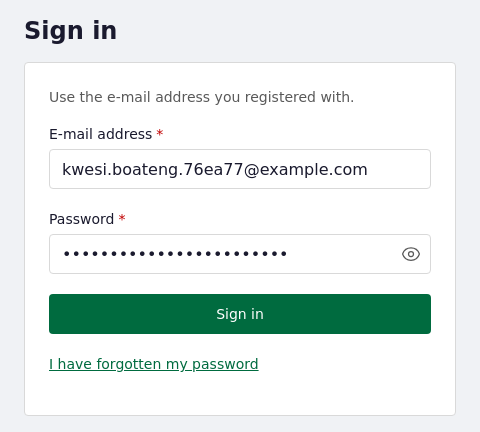
The first step of sign-in: e-mail address and password. - The page Enter your sign-in code opens.
- If you use the e-mailed code: open the e-mail, type the code in Sign-in code. The page states the time at which the code expires. If it has not arrived, wait for the countdown and select Send a new code; the previous code then stops working.
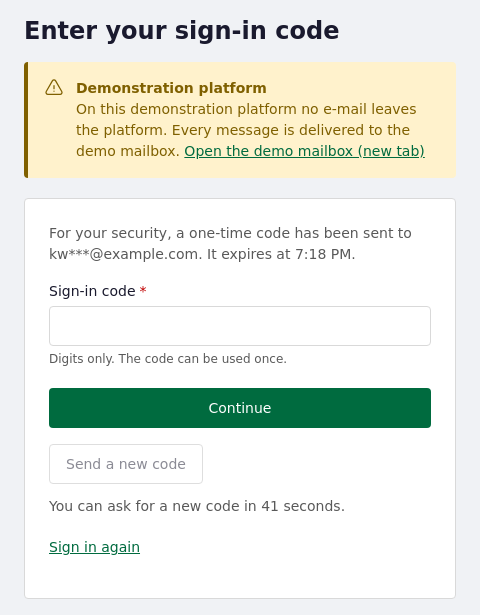
The second step of sign-in with a code sent by e-mail. - If you use an authenticator app: type the code the app shows in Authenticator code.
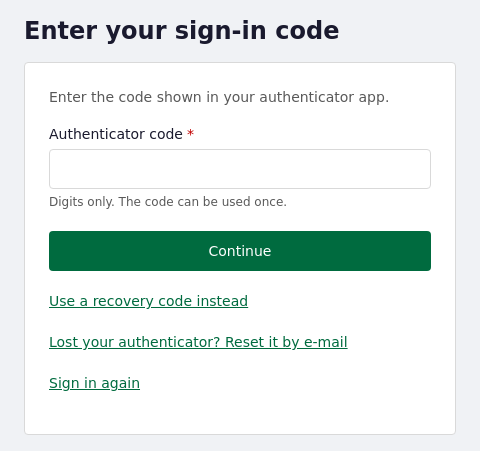
The second step of sign-in with an authenticator app, and the two ways out if the app is lost.
- If you use the e-mailed code: open the e-mail, type the code in Sign-in code. The page states the time at which the code expires. If it has not arrived, wait for the countdown and select Send a new code; the previous code then stops working.
- Select Continue.
- If the privacy notice has changed since you last accepted it, the page Accept the privacy notice to continue opens. Read the notice and select I have read and accept the privacy notice, or select Sign out. You cannot reach your record without accepting the version in force.
The page My registration opens. The top of the page shows Signed in as followed by your sign-in e-mail address, and the navigation now includes My registration and My sign-in.
If you cannot sign in
Recovery is self-service. A recovery link never signs you in: after using it, you sign in again with your password and a second factor.
You have forgotten your password
- On the sign-in page, select I have forgotten my password.
- Enter your E-mail address and select Send reset link. The page shows Check your e-mail whatever address you entered, so it never reveals whether an account exists. The message is sent to the sign-in address of the account; an account that has not yet been activated has no reset (use its activation link), and the spam folder is worth checking. On the demonstration platform no e-mail leaves the platform: the page then links to the demo mailbox, where the message is read.
- Open the link in the e-mail. On Set a new password, enter the New password and Confirm the new password, then select Save the password.
Your password is set is shown. Select Go to sign in and sign in with the new password.
You no longer have your authenticator app
- On Enter your sign-in code, select Use a recovery code instead and enter one of the codes you saved when you set up the app in Recovery code. Each code works once. You are then taken to My sign-in, which shows Set up your authenticator app again.
- If you have no recovery code left, select Lost your authenticator? Reset it by e-mail. On Reset your second factor by e-mail, enter your E-mail address and select Send reset link.
- Open the link in the e-mail and select Reset my second factor. This removes the app, cancels your remaining recovery codes and signs you out everywhere.
Your second factor has been reset is shown. Select Go to sign in; from now on the second factor is a code sent by e-mail.
Read the status of your record
- Select My registration in the navigation.
- Read the summary table: Reference (for example ECOWAS-VND-000123), Status, Legal name and Submitted.
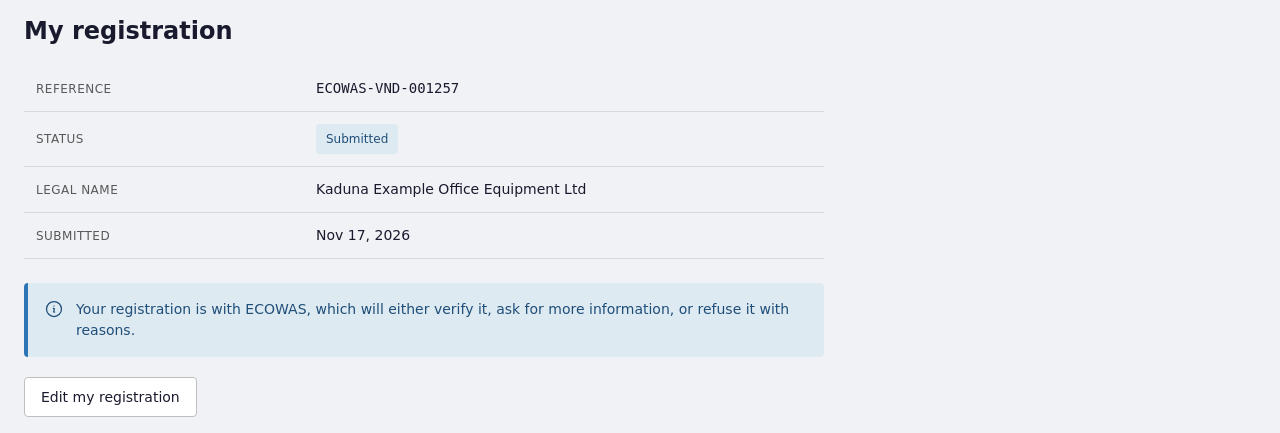
The summary table of My registration. This record is still Submitted; a verified record shows Verified.
A verified record shows the status Verified and the message Your registration is verified. If a change to the legal name is awaiting a decision, the name shown is still the verified one and carries the mark Change pending.
- Verified
- Your record is eligible and you can maintain your profile.
- Suspended
- A suspension for a fixed period is in force (PC Art. 27). See Suspension and exclusion.
- Excluded
- An indefinite exclusion is in force (PC Art. 27). See Suspension and exclusion.
If the registry asked you for information during verification, the table Requests for information keeps the history of those requests and their state.
Change your profile
You can keep your company data up to date while your record is Verified. Some changes apply at once; material changes are reviewed by ECOWAS before they take effect, and the verified value remains the value of record until then. Your record stays verified while a change is reviewed.
- On My registration, select Change my profile. The form Change your profile opens on the same page.
- Read the box What happens to each change. It lists which fields are sent to ECOWAS and which are applied at once; the list comes from the registry's configuration, so rely on what the screen shows. Each field also states it in its hint.
- Change only the fields you need:
- usually reviewed by ECOWAS: Legal name, Tax identification number, and under Ownership the tables Owners and shareholders, Directors and senior managers and, for a joint venture, Joint-venture partners;
- usually applied at once: Telephone, Website, Registered address (Street address, City), Primary contact (Full name, Position, E-mail address) and Description of activities.
- If you change the primary contact, tick the confirmation that the person knows their details are being provided to the registry.
- Select Submit changes, or Cancel to leave without changing anything.
Your changes were recorded is shown, with the number of changes applied at once and the number awaiting the registry's decision. The page then shows what the registry now holds.
Follow your changes
- On My registration, go to Changes to your profile.
- Under Awaiting the registry’s decision, each pending change shows the Value of record beside the Proposed value.
- Under Decided and applied changes, each change shows the value before and after, its Outcome and the dates.
When ECOWAS decides a change, a notice is sent to the registered e-mail address of your record, with the reason where one is given. A rejected change is not applied and the verified value remains.
Keep your documents current
Once your record is verified, you keep its documents current from My documents. Replacing a document uploads a new version; the previous version stays on the record and is never deleted. The page also shows the validity of each document as last assessed by ECOWAS.
- On My registration, select My documents. The page My documents opens.
- Read the summary: Validity of your documents gives the validity of your documents as a whole, and Last assessed the date of the last assessment, or Not yet assessed.
- Read the table Your documents. It has one row per document of your checklist, including those of joint-venture partners, with the columns Document, Current version, Expires, Scan and Validity.
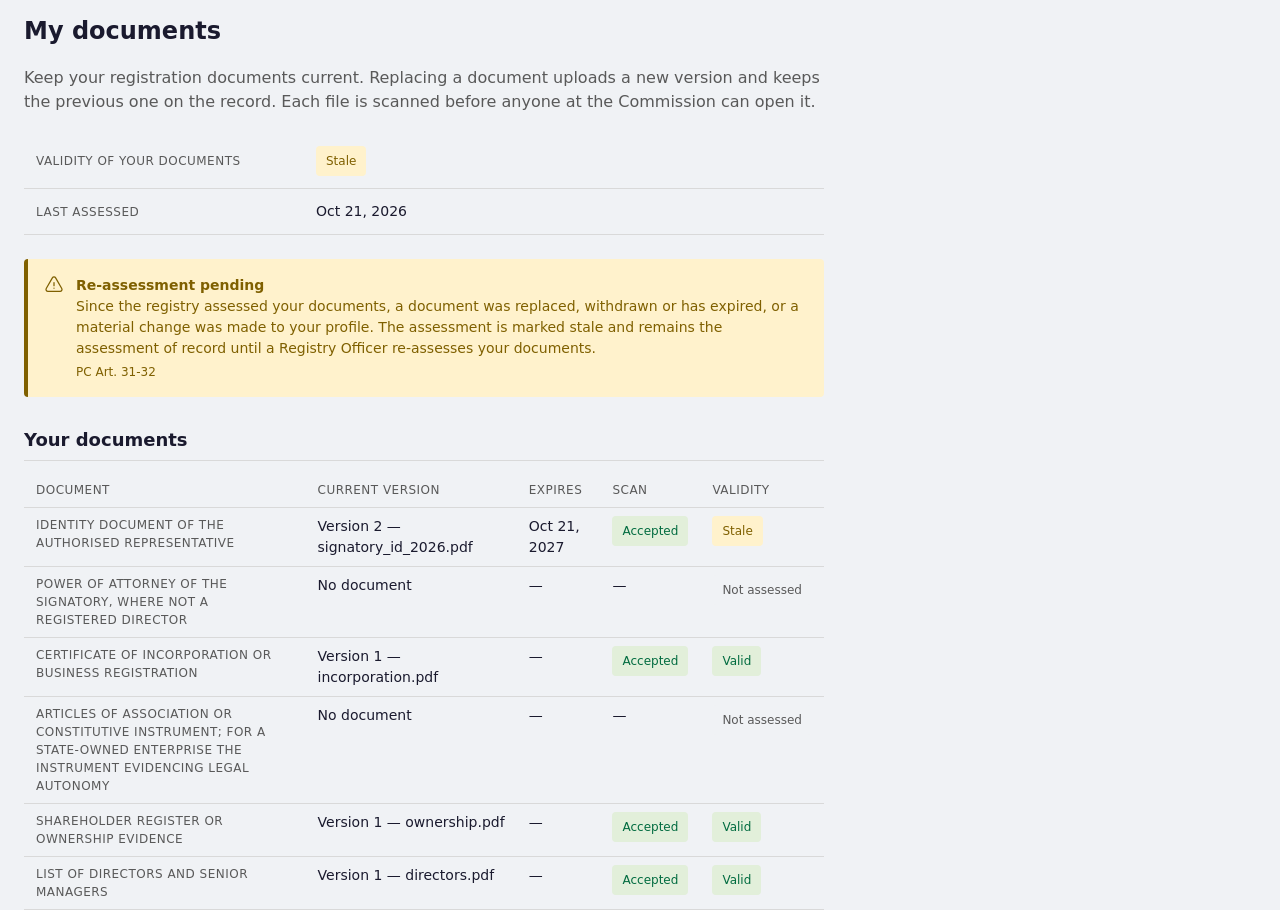
My documents after a replacement: the replaced document, and your documents as a whole, read Stale until ECOWAS re-assesses them. - Under Required documents or Optional documents, find the card of the document to replace. Use Choose a file to pick the new file; the file name appears beside it. If the card has an Expiry date (needed with this file) field, type the expiry date shown on the new document as dd/mm/yyyy. While Replace is disabled, a line beside it says what is still missing.
- Select Replace. For a slot that holds no document yet, the button reads Upload.
A notice appears inside the card you used and keyboard focus moves to it: Waiting for ECOWAS to check your new document. It says that your registration stays as it is and that nothing more is needed from you now. Under Versions of this document, the new version is listed and the previous one is marked Replaced. The scan of the new file reads Being checked, then Accepted; the page refreshes itself while a scan is pending.
The column Validity shows the outcome recorded for each document, for example:
- Valid
- ECOWAS found the document valid at the last assessment.
- Invalid
- The document was found invalid; the reason recorded by ECOWAS is shown under it. Replace it with a valid document.
- Stale
- The document was replaced, or the version that was assessed has expired, since the last assessment.
- Not assessed
- No outcome has been recorded for this document.
Document expiry reminders
For each document that carries an expiry date, the registry writes to the registered e-mail address of your record, in the language of your record:
- a reminder before the expiry date, at each lead time set by the Commission: by default 30 days and 7 days before. It names the document, its expiry date and the number of days remaining;
- a notice once the expiry date has passed, naming the document and its expiry date.
- Open the link in the e-mail. It opens My registration; sign in first if you are asked to. The link does not sign you in.
- Select My documents and replace the document as described in Keep your documents current, with the expiry date of the new document.
The new version carries its own expiry date, and its reminders follow the same lead times.
Change the registered e-mail address
The registered e-mail address belongs to the vendor's record: the registry sends its decisions, notices, document reminders and messages to it. It is not your login e-mail, which you change on My sign-in (see Manage your sign-in). A change of the registered e-mail address is not reviewed by ECOWAS, signs nobody in or out, and takes effect only once the new address confirms it.
- On My registration, select Registered e-mail address. The page Registered e-mail address opens. It shows the two addresses side by side, under Registered e-mail address and Your login e-mail, and the box This is not your login e-mail.
- Under Change the registered e-mail address, enter the address in New registered e-mail address and select Send the confirmation link.
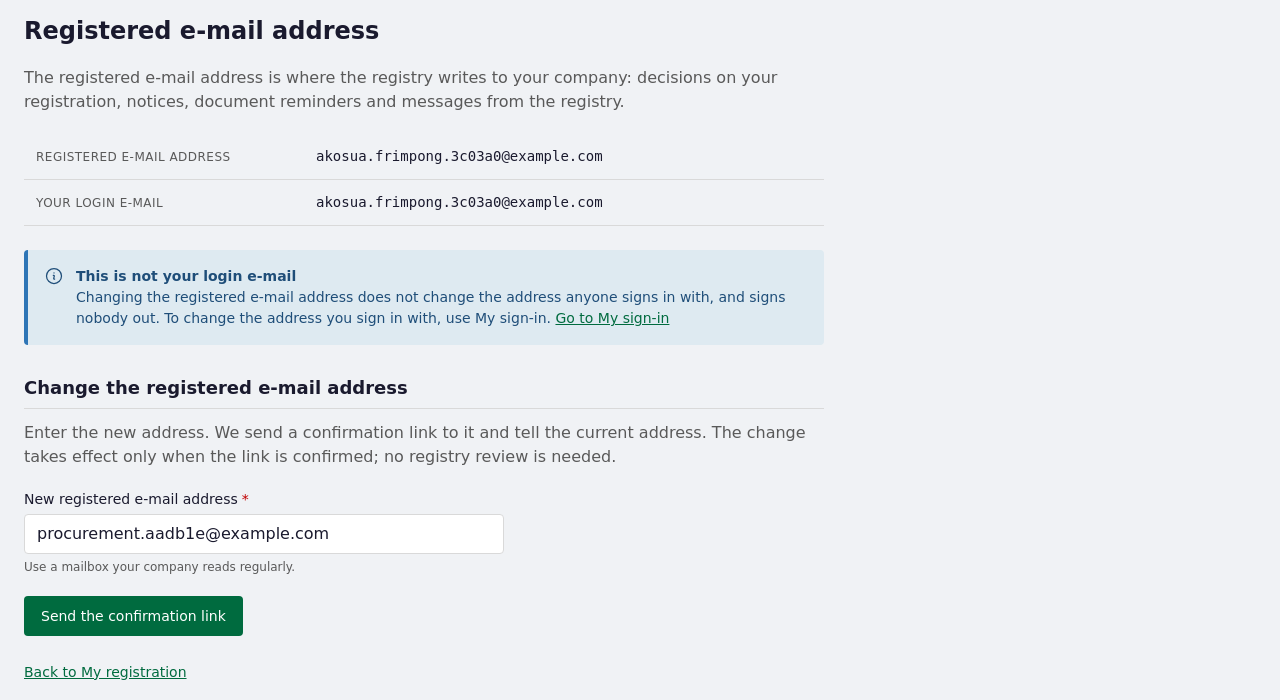
The page before the request is sent. Nothing changes until the new address confirms the link. - If the panel Confirm it's you opens, enter the code in Code from the e-mail, or the code your authenticator app shows in Code from the app, and select Confirm. The request is then sent with the address you had entered.
- The page shows Check the new mailbox. A confirmation link is sent to the new address, and the current registered address is told about the request. Until the link is confirmed, the registry keeps writing to the current address.
- Open the link sent to the new address. On Confirm the registered e-mail address, select Confirm the registered address. Nothing changes until you select it.
The registered e-mail address has been changed is shown. From then on the registry writes to the new address; login e-mails and sessions are unchanged. Select Go to My registration.
Download a copy of your data
From My data you can download a copy of the personal data the registry holds about your company and the people you named in your registration. It is one machine-readable file (JSON), prepared on request. Only a verified vendor can ask for it: before the registration is verified, the page shows Available once your registration is verified and offers nothing to request.
- On My registration, select My data. The page My data opens.
- Read What the file includes. The file holds:
- the registered e-mail address and telephone number of your company, and every change of the registered e-mail address;
- the directors and officers, the owners and beneficial owners, the contact persons and, for each country of presence, the management team you named;
- a list of the documents that may hold other people's personal data (references and key staff CVs), with their file names only;
- for each kind of data, why the registry holds it, on what basis and for how long it is kept.
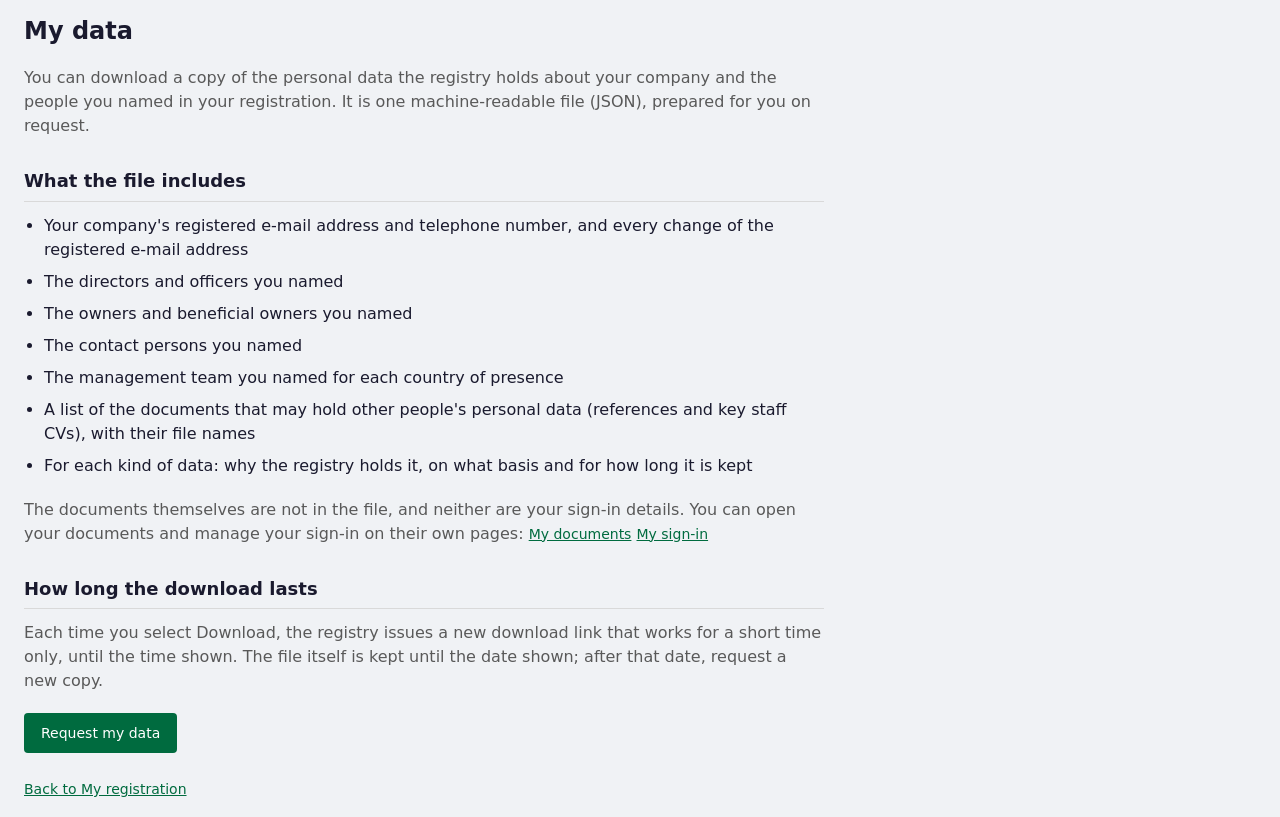
My data before a request: the page states what the file holds before anything is asked for. - Select Request my data. While the file is prepared, the page shows Preparing your file. This usually takes a few moments.
- When the file is ready, the table shows File, Entries in the file, Download link valid until and File kept until. Select Download.
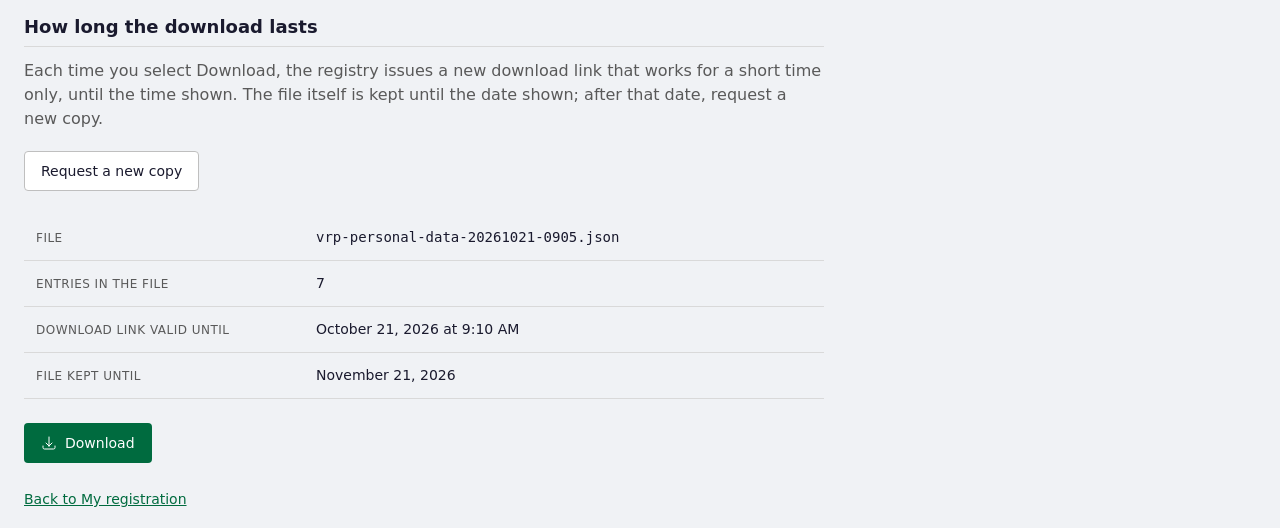
The file is ready. Each time you select Download, a new link is issued, valid until the time shown.
Depending on its settings, your browser opens or saves the file, named for example vrp-personal-data-20261021-0905.json.
Notices from the registry
The registry writes to you by e-mail, in the language of your record. There is no message box in the portal. You may receive, for example:
- the decision on a change to your profile;
- a reminder before a document expires, and a notice once it has expired (see Document expiry reminders);
- a confirmation link at the new address, and a notice at the current one, when the registered e-mail address is being changed (see Change the registered e-mail address);
- a message sent by ECOWAS to registered vendors;
- security notices about your account: a sign-in code, a reset link, or a notice that a sign-in setting has changed;
- a notice of exclusion, or a notice of reinstatement.
Manage your sign-in
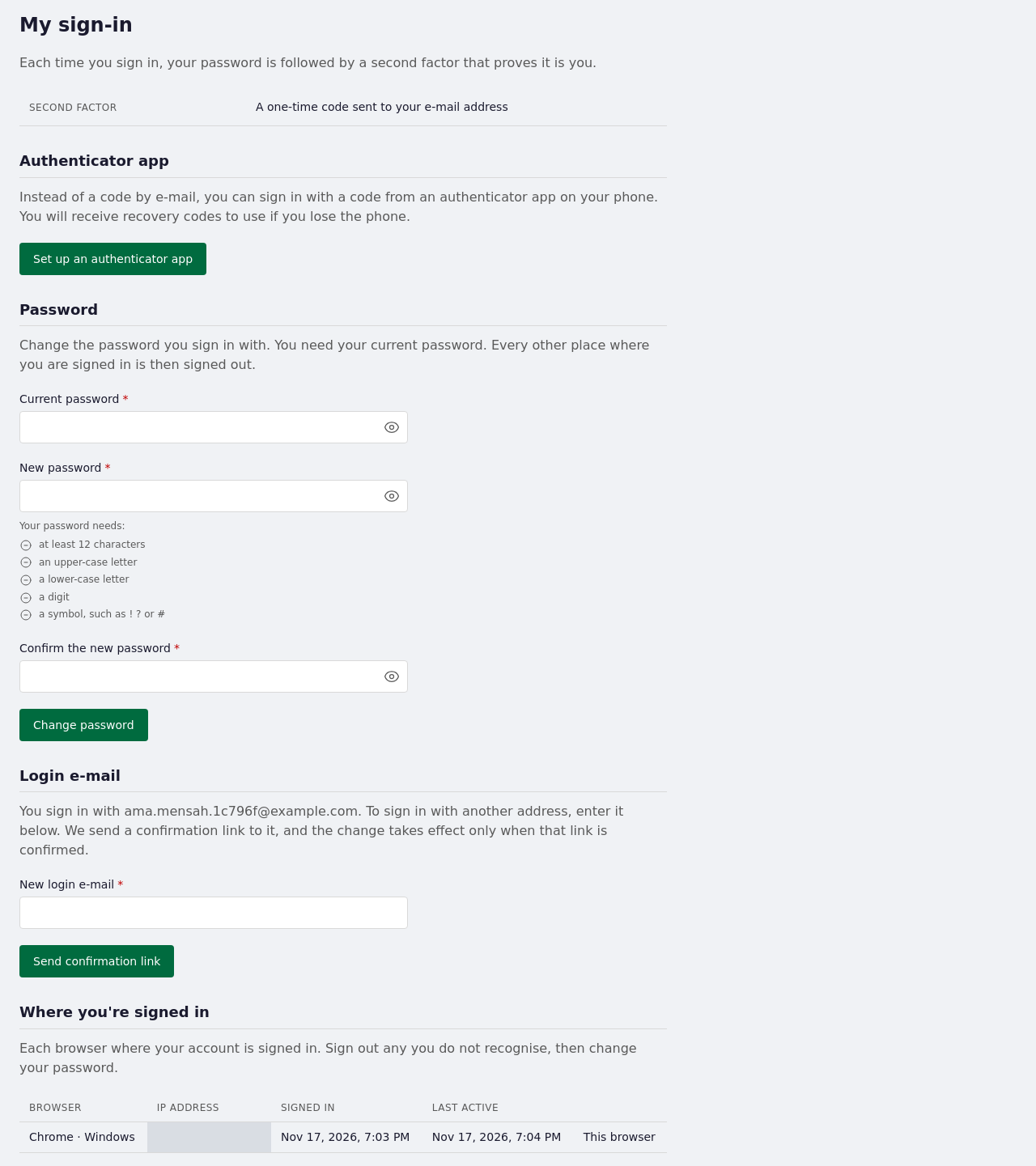
Select My sign-in in the navigation. The page shows your Second factor: A one-time code sent to your e-mail address or An authenticator app.
Change your password
- Under Password, enter the Current password, the New password and Confirm the new password.
- Select Change password.
Your password is changed is shown. Every other place where you were signed in is signed out; this browser stays signed in.
Change your login e-mail
- Under Login e-mail, enter the address in New login e-mail and select Send confirmation link.
- The page shows Check the new mailbox. Your current address is told about the request. Until the link is confirmed you keep signing in with your current address.
- Open the link sent to the new address. On Confirm your new sign-in address, select Confirm the new address.
Your sign-in address has been changed is shown and every session is signed out. Select Sign in with the new address and use your existing password.
Set up an authenticator app
- Under Authenticator app, select Set up an authenticator app.
- Open an authenticator app on your phone, add an account and scan the QR code shown. If you cannot scan it, enter the Setup key instead.
- Enter the 6-digit code the app now shows in Code from the app and select Confirm. The set-up must be confirmed by the time stated under the field.
- Your recovery codes are shown once only. Select Copy the codes or Download as a text file and keep them somewhere safe, away from your phone.
- Tick I have saved my recovery codes somewhere safe. and select Done.
Your authenticator app is set up is shown. From your next sign-in you enter the code the app shows; no sign-in code is e-mailed.
See where you are signed in
- Under Where you're signed in, read the list of browsers where your account is signed in. The one you are using is marked This browser.
- Select Sign out beside any session you do not recognise, or Sign out everywhere else.
- If you did not recognise a session, change your password next.
Suspension and exclusion
A sanction decided under the Procurement Code acts on the vendor's record, not on your personal account (PC Art. 27). A dated suspension shows the status Suspended; an indefinite exclusion shows Excluded.
- Sign in as usual. Signing in remains possible.
- On My registration, read the message This party is currently excluded (PC Art. 27).
- Read the notice of exclusion sent to the registered e-mail address. It states the type of sanction, the ground, the dates, the deciding body and the appeal procedure.
You can still sign in, read your record and your documents, download a copy of your data from My data, and use My sign-in.
Public pages
These pages are open to anyone, signed in or not.
Check a registration
- Select Check a registration in the navigation.
- Enter the Registration reference, for example ECOWAS-VND-000123, and select Check status.
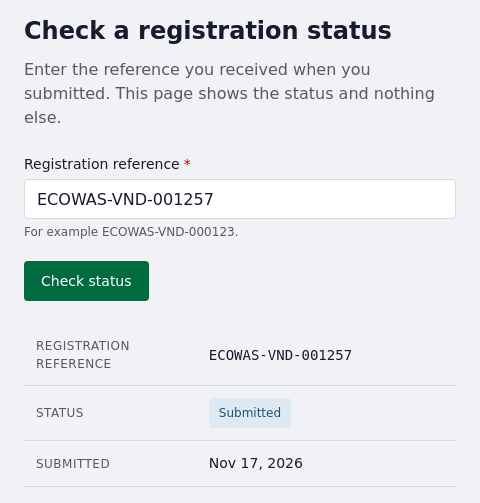
The public status check shows the status and its dates, and nothing else.
The Status is shown with its dates, and nothing else.
Consult the exclusion list
- Select Exclusion list in the navigation. The page Published exclusions opens.
- Optionally enter part of a Vendor name and choose a Status: All published exclusions, In force or No longer in force.
- Select Search.
The table lists each published decision (PC Art. 30.9) with the Sanction, the Article violated, the dates Effective from and Effective until (or Indefinite) and the status.
What this role does not do
| Task | Who does it |
|---|---|
| Verify a registration, decide a material change to a profile, confirm categories and countries of presence | ECOWAS |
| Re-assess the validity of your documents after a replacement or an expiry | ECOWAS |
| Withdraw a document from a verified record | Not offered: a document is kept current by replacing it |
| Record, publish or lift a sanction (PC Art. 27, 30.9) | Sanctions Committee or Registry Administrator |
| Set a new login e-mail for you when you have lost access to the mailbox of your login e-mail | Registry Administrator |
| Search the registry or read the records of other vendors | ECOWAS staff with a registry role |
| Start or submit a new registration for another vendor with the same account | Not possible: one account acts for one vendor record |
| Add other users to act for the vendor | Not available in this release |